

Jureeka! turns legal citations in web pages into hyperlinks that point to online legal source material. Its handy toolbar also allows you to search for source material by legal citation and to find HTML versions of PDF pages. Jureeka! is great for quickly locating statutes, case law, regulations, federal court rules, international law sources, and more. It weaves together a host of law sources into a giant mesh.Get it here. Homepage here.
Showing posts with label Software. Show all posts
Showing posts with label Software. Show all posts
Wednesday, October 1, 2008
Jureeka! The Firefox extension we've been waiting for


Friday, September 26, 2008
Adolix Split And Merge PDF
In one of Bill's weekly postings (Link) he mentioned Adolix Split And Merge PDF. I'm posting to recommend it. This app fills something that I have found to be a recurring need, the ability to split and merge items into PDF files. It works like a charm and its free. The only down side is that the free version doesn't allow you to merge images or Word files in, you first have to convert your files into PDF format (you can use PDFCreator for that). Download Adolix here.
Thursday, May 29, 2008
QuickTip: Text Replacement with Texter
Cut down on repetitive typing with Texter.
Download at Lifehacker.
I've been using texter for a little while now and I absolutely love it. I haven' t run into a limit on the replacement text yet and I've done some very long replacements.
__________
Share This Post!
Monday, May 19, 2008
Find things FAST on your computer
When it comes time to open a program or find a specific file how long does it take you? How many clicks? How many folders do you navigate through? Odds are it can be done a lot more efficiently.
There are several options available to make launching programs and opening files a painless, speedy process (and you probably didn't even know it was a problem!).
There are two main types of application launchers. There is the dock family, which mimics the application bar made popular in Mac OS X. This type of launcher sits at the bottom (or top, or side) of your screen and holds shortcuts to several often used programs. ObjectDock and RocketDock are popular options for Windows. Both are free and I've used each at some time in the past. They're both perfectly legitimate options for ridding your desktop of clutter and will likely help you be a bit more efficient. I have scrapped both of those options in favor of what I probably consider the most handy piece of software on my computer today. Launchy is another free application launcher, but unlike those in the dock family. Launchy is in what I will call the "Launcher" family. Launchers stay hidden until needed, taking even more clutter off of your desktop, and pop up when called to deliver what you're looking for.
  What makes Launchy the best launcher I've seen is that you can not only launch programs with it, you can call up files as well. Launchy can easily be customized to include a template subdirectory so that you can type the first few letters of a file you're looking for and it is quickly delivered and opened by pressing enter. Launchy is called to the screen by pressing [alt]+[spacebar] by default, but this can be changed to something more intuitive to you. Quicksilver is a popular option for Macs.
Tuesday, April 29, 2008
Free Business Card Software - Today Only!
The folks at giveawayoftheday.com are great! Every day there's a piece of software that usually ranges in price from about $10-$50 that they give away for free. Most days the free software is some kind of computer "cleaning" product, or often it has to do with audio converting.
Today however, they've got free business card designing software called iBizCard (normally $39.95). I haven't checked it out yet, but I'm downloading and registering it today so that I can look into it in the future. The offer is limited, the software is not, often the software they provide free is fully functional non-trial versions. The offer is only good for another 17 hours and change so get over there and get it! Add it to your RSS feed and you'll be notified every day of the free wares.
As a side note... it's finals time, this is the reasons the posts have been sparse and will continue to be so for the next couple of weeks. Hang in there... I promise to finish my UserForm series shortly after graduation.
__________
Share This Post!
Thursday, April 10, 2008
Backup and transfer Word Autocorrect settings

While automatic syncing may be a little too hopeful (or at least beyond my VBS ability. Mike?), there is a VERY easy solution for backing up and importing your saved Autocorrects. Dave Rado at mvps.org has written a macro that automatically backs up your Autocorrects. Then, when run on the new computer, imports them.
After downloading and extracting the zip file, run the template, and it's all pretty self explanatory from there. If you need additional help there's instructions on the original post.
______________
Share This Post!

Monday, April 7, 2008
Batch-edit Microsoft Word file properties

Imagine for a second that you have created a standard template for a divorce complaint (or anything else really), that you are emailing to your client/opposing counsel/whoever for review or service. The recipient views the properties and sees the subject as Jones v. Jones, which would be fine, except this is the Smith v. Smith case; or similarly, they see the name of a lawyer from another firm who sent you the template originally. It looks tacky, it's unprofessional, and most importantly, it's easily fixed with this free tool.
Easy Microsoft Word Properties is a free, lightweight program that can change the properties all of the .doc files in a directory. Try changing the "Author" from "Jane Doe, the secretary that worked there 3 years ago", to "XYZ Law Office, LLP." It's a simple step that can go a long way to convincing your client that they're not just paying for your assistant to do your work.
[via Lifehacker]
__________
Share This Post!
Thursday, April 3, 2008
On-site printing off-site

Have you ever wanted to print something when you were away from the printer? For anyone who's ever used a laptop the answer is probably yes. PrinterShare (Formerly PrinterAnywhere) is probably in the top 3 most valuable pieces of productivity software I've found. The ability to print at my house from school (or at the office from the courthouse perhaps) is similar to a DVR; You never realize how much you need it until you have it, and you'll never go without it again. But it's value could go further if you're needs required.
PrinterShare could potentially be a fax replacement since you can print to ANY shared printer, not just your own, and it even comes with a cover page option. However this would require a certain amount of collusion amongst the "sender" and "recipient" since each side would need to have a client installed.
PrinterShare is simple to set up, and when it comes time to print a document remotely, you just choose the shared printer from the regular print options. Because PrinterShare queues print jobs to their server, your computer doesn't even need to be on for PrinterAnywhere to work—it just fires up the job as soon as the application runs.
Oh ya, did I mention it's FREE? They claim to put a watermark/advertisement on the cover page, however there's an option in the preferences to disable cover pages and so I've never seen the proof. In the end there are no watermarks or any other signs that you used the service.
Wednesday, April 2, 2008
Bates Stamping
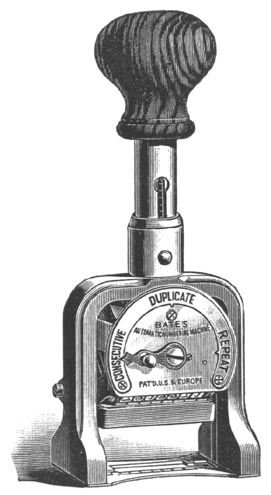
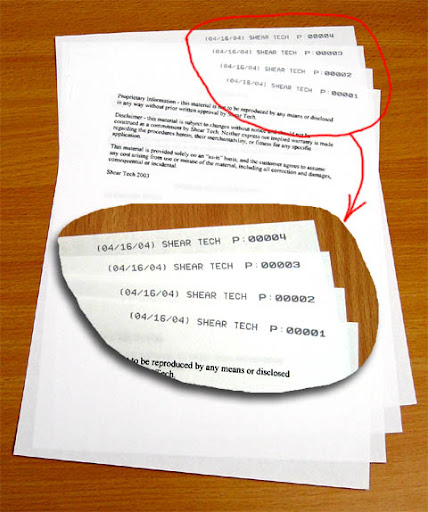
I just wanted to do a quick post about something I found helpful last summer. We were required to bates stamp our evidence for identification. EzBates came in handy for using a printer to do hardcopies. Adobe Acrobat can be used to easily bates stamp PDF files. Heres a good blog post about lawyers that like to do things the hard way (during a recent visit to the SD Supreme Court I discovered that the clerks are still doing everything by hand - they had missed a few pages of our documents).
Wednesday, March 26, 2008
Using Greasemonkey to "fix" a webpage
Do you use a webpage that doesn't quite get the job done? Is there just something missing? Greasmonkey to the rescue. Greasemonkey is an addon for Firefox that allows you to "fix/hack" web pages. You add different scripts to Greasemonkey that hack the page you are visiting. When the page loads, the Greasemonkey script that goes with that page is run. The script doesn't actually hack the web page on the server, it alters the way you see the web page on your computer. You can find Greasemonkey scripts here. These scripts do such varied things as adding a currency converter to eBay, a auto save for web text boxes, a bunch of stuff for Facebook (get rid of adds/spam all your friends/change page colors/make peoples profile pictures larger), etc. Heres a good run down of some good scripts.Lifehacker lists some good ones too. The July 2007 ABA Journal lists Greasemonkey as number 43 of 101 tips, tricks and tools to make you a more productive, less stressed-out lawyer.
For example,I do a lot of case research using Lexis. Aside from noting passages using Google Notebook, I like to download cases onto my hard drive so I can read the later and make notes on them using Acrobat Professional or Foxit. One annoyance I ran into was naming cases and articles I downloaded. Usually I am downloading tons of cases that I've found during a search. Its faster if I simply copy the title into the filename box. However, my friendly Nexis page tersely tells me "Filename should not contain spaces! Try again."
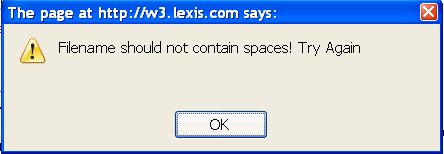
Try again? What is this, a guess the right filename contest? Now, I know what you are thinking, why can't I just delete the spaces? Well, you try doing that with 50 cases. So my solution was to create a Greasemonkey script that adds a "Strip Spaces" button to Lexis that replaces spaces with underscores.

For those interested, heres the code (this is Javascript, but see this post for a little better understanding of code generally):
For example,I do a lot of case research using Lexis. Aside from noting passages using Google Notebook, I like to download cases onto my hard drive so I can read the later and make notes on them using Acrobat Professional or Foxit. One annoyance I ran into was naming cases and articles I downloaded. Usually I am downloading tons of cases that I've found during a search. Its faster if I simply copy the title into the filename box. However, my friendly Nexis page tersely tells me "Filename should not contain spaces! Try again."

// This script will add a Strip Spaces button to the Lexis download page.
//
// ==UserScript==
// @name         ReplaceWUnderscore
// @namespace     http://techoflaw.blogspot.com
// @description   Adds a Strip Spaces button to Lexis
// @include       http://w3.lexis.com/research2/delivery/*
// ==/UserScript==
//


var eltAfter, newElement;
eltAfter = document.getElementById('delDwnldName');
if (!eltAfter)
eltAfter=document.getElementsByName('fileName')[0];//for some reason the getdocument is dift that the search
if(eltAfter)
{
//add the script
scriptAfter=document.getElementsByTagName('head')[0];//document.getElementsByName("script")[0];
newScript = document.createElement('script');
newScript.setAttribute("type","text/javascript");
newScript.innerHTML="function stripspaces (){obj=document.getElementById('delDwnldName');if(!obj) obj=document.getElementsByName('fileName')[0];str= obj.value;str=str.replace(/ /g,'_');obj.value=str;};"
scriptAfter.parentNode.insertBefore(newScript, scriptAfter.nextSibling);

//add the button
  newElement = document.createElement('input');
newElement.setAttribute("value","Strip Spaces");
newElement.setAttribute("class","browseButton");
newElement.setAttribute("onclick","stripspaces();");

newElement.setAttribute("type","button");
   eltAfter.parentNode.insertBefore(newElement, eltAfter.nextSibling);
}
Thursday, March 6, 2008
Simple Remote Folder Synchronization (FolderShare)

Foldershare, at it's simplest, allows you to automatically synchronize specific folders among two or more computers. This overly simple description doesn't begin to touch on ease of mind of always knowing that every change you make to every document is automatically being whisked away and stored safely on another hard drive; far away from the danger of the coffee mug sitting next to your computer just waiting for a chance to tip over and let it's half-caf goodness ooze into your keyboard, and turn your beloved laptop into an awkward paperweight.
OK, so maybe I'm a little bit more paranoid about backing things up than the average bear (I really don't think my coffee mug is out to get me... I drink tea), but my peculiarities are really not the point of this post... I promise. Below you'll see a picture of Foldershare in action... Quietly whisking away every change I make to the Commissioner v. Estate of Bosch file while at school to the safety of my desktop computer at home ("King Ebenezer" is the name of my laptop, named after a song. OFFICE, is predictably, my office computer).
But as the name (FolderSHARE) indicates, file backup is not the main or only purpose. Once this is installed on your home computer you will be able to access any file on your computer, from any computer anywhere in the world (provided that it's turned on). Also, folders can be shared with one or more friends/colleagues.
In spite of my praise for it... Foldershare does leave a bit to be desired. My wishlist includes 1) ability to exclude designated extensions; 2) unlimited libraries (current limit 10); 3) folder hierarchy maintained after delete; 4) automated maintenance of the trash folder (or sending them straight to the recycle bin); and 5) better compatibility when a file is open on both computers at the same time.
Even after I've laid out this wishlist Foldershare is something I would highly recommend to everybody, whether you're on the go alot or not.
Wednesday, February 13, 2008
Visualising Timelines for the Jury

For the jury trial I assisted with this summer, we needed a way to visually demonstrate the order of events in a case to the jury. The order and timing of the events were very important to the outcome of the case and we needed a way to dynamically change the timing to reflect witness testimony. What I arrived at was TimeLineXpress
TimeLineXpress is just what the Dr. (in this case police training expert) ordered. The program is really simple and looks snappy. It comes with its own event editor, but the icing on the cake is that it allows you to import from an Excel CSV file (comma separated value). The program allowed us to compile witness testimony on event timing into an Excel file that was later imported into the program.
The more challenging problem with high-tech demonstrative evidence is getting it admitted. It came in through an expert but was a tough argument. The clincher was that the judge was interested in letting the jury go on with their lives and didn't like the alternative of an expert drawing timelines on a marker board for days.
I need to mention that TimeLineXpress didn't fill may needs 100% at first glance. However, I called their tech-support and they were VERY helpful in coming up with a solution.
Another interesting way to display event timing presents itself with audio recordings. In the case I was working on, we had police dispatch audio that we played for the jury. Dispatch recordings have a timing track superimposed over the audio - a woman's voice states the time at intervals. The problem was that it was hard to keep straight what was happening at what time. So again, we needed a visual solution. Enter Audacity. Audacity is an open source sound editing program. As with all audio editing packages there is a graphical plot of the waveform over time. Audacity also allows insertion of a label track for flagging pieces of audio. Audacity is great for interpreting garbled messages because it allows looping of a slice of audio. It also allows the audio tracks to be separated by channel - the timing track on the dispatch tape was on the right channel (I believe). Once the right and left tracks were separated, the timing track could be shut off for easier listening. Further, Audacity is great at isolating the precise moment something is said because you can zoom on the wave form and see the initial spike in the wave. By using this method I could add a label at the exact point the time track indicated the periodic intervals. I could also highlight the relevant comments and sounds and label those so that even when it was garbled you could tell what was said. I could also simply click on my label and play certain comments.
Unfortunately, we didn't use the Audacity timeline. We had to choose our evidentiary battles and the TimeLineXpress timeline was sufficient. It was pretty funny when the opposing counsel questioned the timing of our dispatch transcript, I gave him a peak at why he was wrong. Make sure you click on the timeline image at right so you can see just how powerful the labels can be.
__________
Share This Post!
Faster Better Note Taking - Symbols and Common Words
One thing I had to solve when I started using a laptop to take notes in law school was first how to make all those weird symbols and second, how to keep up (Professor Thatcher is fast).
The - Quick, Tell Me How to Make My Life Easier - Answer
Microsoft Office products let you insert symbols by going to insert->symbol. There you can select a font and search the characters provided by that font. To insert, you simply highlight the character you want and hit the Insert button.
If you are trying to keep up with note taking this can really be a drag. Thus the friendly people at Microsoft (and the makers of WordPerfect) provide the AutoCorrect feature. You can get to the AutoCorrect dialog by going to Tools->AutoCorrect Options (for Office 2007 users click here). With AutoCorrect you can tell the program to replace one group of characters with another. For example, I use the "§" a lot in legal note taking. To add this I can copy the symbol, open the AutoCorrect dialog and paste the symbol in the "With" box. Then I need to think of a combination of characters that remind me of the symbol but doesn't occur in the English language. For § I chose "~s" (thats the tilde symbol "~" in the upper left of your keyboard). I put the "~s" in the "Replace" box and hit Add. Now whenever I type~s the § symbol is inserted.
AutoCorrect also works great for commonly used words and for expanding abbreviations. For example I have AutoCorrect to replace s/l with statute of limitations. b/k is replaced by breach of contract. Some less common abbreviations are jdn for jurisdiction, jdgmt for judgment, etc.
Another neat trick is to put a punctuation mark at the end of your abbreviation to allow adding past tense and plurality. A space or punctuation mark triggers the insert of your expanded AutoCorrect word. If you put a period at the end of your abbreviation, for example "dmg." as an abbreviation for "damage", you can be quicker because typing "dmg.s" turns into damages or typing "dmg.d" turns into damaged. The alternative would be to type your abbreviation, hit space to make it insert and then hit backspace to add your "s" or "d".
The Advanced Answer
When I first tried to solve this problem, I knew how to make special symbols from Spanish class. You have to first look up your symbol in the character set for the font you are using. You can do this using a utility called Character Map, which is found in Start->All Programs->Accessories->System Tools. With the utility, you can copy and paste characters into documents (Microsoft Office apps have the same thing in insert->symbol). But the real beauty of the Character Map utility is that it gives you the keystroke at the bottom right corner for characters common to all fonts, or the character code at the bottom left corner (2206 for the delta character in the Arial font shown at right) for symbols that are not common to all fonts. You can type alt+the key code on the number pad of your keyboard (I have no idea why its not the top numbers) and the symbol will be inserted (try typing alt+182 into a Word document right now). There are three downsides to this "hack." First, the character code of a symbol changes
 between fonts (some fonts throw in all kinds of other symbols). Only a few symbols are common to all fonts (the ¶ character is one of them). Second, for the symbols not common to all fonts, the number listed on the Character Map program is in hexadecimal (its a number system your computer uses - think binary but base 16 instead of base 2) instead of decimal (base 10). You have to convert the number to decimal (the calculator program can do this). The delta character, in decimal is really 8719. Characters that are common to all fonts have the keystroke combination shown in the lower right hand of the Character Map application. The ¶ character is common to all fonts and Character Map lists it as alt+0182. The Final downside is that its even harder to do on laptops. Remember, you have to use the number pad to generate
 the symbols. On laptops the number pad usually consists of keys that do double duty as letters. you need to hold down fn +NmLk to activate and deactivate the number pad keys.
Some common handy legal symbols:
§ Alt+167
© Alt+169
® Alt+174
¶ Alt+182
π Alt+227
From Spanish class:
¿ñè
You get the picture.
__________
Share This Post!
Office 2007 Classic Menu

[rant]
When I got the new version of Office I was stunned. Where did my "File, Edit, View ..." menus go? These are menus that I have used for at least 11 years. I've been reduced to the same hunt and pecking that my parents do. Microsoft's organization only barely makes sense. Further, the change goes against everything Microsoft (and McDonald's) was built on, uniformity. As a Windows programmer, everything I've ever read from or have been taught by the boys in Redmond is that every program should look alike so that a user can easily learn to use a new one. As the philosophy goes, if you've learned one program, you've learned them all. What's happened now - Microsoft has abandoned uniformity and ease of learning. In fact, its illegal for developers to even use the ribbon in their programs. Thats ridiculous.
[/rant]
[good advice]
If you share my sentiment, check out Classic Menu. It will give you back the menus from previous versions of Word and Office.
[/good advice]
__________
Share This Post!
Document Technologies on the Cheap
Today, a large amount of legal information is being converted to electronic format. Gone are the days of fax machines and paper copies. As a result, legal practitioners need to be able to seamlessly integrate this new technology into their practice. I'm taking a quick moment to post about some document technologies I've found useful for the legal office on a budget.
Adobe PDF is one of the largest technologies that legal offices must be able to deal with. Offices need to be able to create and use these files. The professional version of Adobe is nice, I grabbed it with my student discount. However, before that I was doing the same thing with free tools. The free tools are almost as good as the very expensive Adobe tools which are hard to justify without a discount (mine came with photoshop, illustrator, flash, etc.). The first of these free PDF tools is PDFCreator. Pdfcreator installs a "virtual printer" that shows up in your printers list. When you select this "virtual printer" it prints to a PDF file instead of an actual printer.
Another Adobe Acrobat Pro replacement is Foxit
As a side note, don't you
hate it when you
paste something
from a PDF
file and
it looks like this.
Well, this has to do with how the PDF file was created. The original author didn't add appropriate "tags" to the document to tell the Acrobat reader where a line starts and stops (thanks Westlaw and Lexis). The ABA site has a good article on fixing this in Adobe Acrobat. This hasn't solved all my problems so I wrote a VBA Macro to do a smart "paste special." I'll give more details in a future post.
The last freebie I'll mention is  Open Office.org. Open Office is a free replacement for the Microsoft Office package. Open Office has some minor annoyances but it provides all the functionality most people need. I used this for a year with no problems until I found a student discount on Microsoft Office I couldn't pass up. My switch had nothing to do with the core functionality of Open Office though, I've programmed Microsoft's Visual Basic for Applications for many moons and, as a coder, having to spend the time to learn Open Office's supported languages was just too much. If you had no clue of what I just said, then Open Office is the only package you need. Last big bonus, Open Office doesn't have that productivity killing ribbon bar Microsoft forced on their poor users in Office 2007 (more on this later).
__________
Share This Post!
Subscribe to:
Posts (Atom)