Showing posts with label Intermediate. Show all posts

Monday, April 12, 2010

Automatically Format Names of Word Document

Good organization of your electronic files requires two key elements. First you need a logical and consistent folder hierarchy. Each client or project folder should have identical, or at least similar, folders corresponding to that particular client. Second, you need a consistent file naming procedure to organize files within each folder.

Many people include dates in file names in an attempt to organize their folders and find what they're looking for with a glance. However, too often people fall into the mm/dd/yyyy trap of dating their files. I get it, we're Americans, we were raised writing the date that way. If we were European we would likely name our files dd/mm/yyyy. However, computers are neither Americans nor European. If we want our files to be organized as best they can we need to learn to speak a bit of computer.


Shortfalls of conventional date formats
Your computer wants to organize things alphabetically and in descending order. What this means is that a letter titled 04-12-2010 - Letter to Joe.doc will be placed after 04-11-2010 - Letter to Jane.doc and before 04-15-2010 - Letter to Jim.doc. That's great so far, but we run into trouble when we change years. For example 04-12-2011 - Letter to Joe.doc when placed in the same folder will result in sorting like this:

04-11-2010 - Letter to Jane.doc
04-12-2010 - Letter to Joe.doc
04-12-2011 - Letter to Joe.doc
04-15-2010 - Letter to Jim.doc
The dates become jumbled. Our British friends' folders, would be even more chaotic. And people who put their dates at the end of the file name run into even more of a mess by sorting first by recipient then by date. Fortunately, the solution is simple. We change our date format to a YYYYMMDD format.

A better date format method
Some people like YYYY-MM-DD, some like YYYY.MM.DD. I prefer YYYYMMDD because as applied to my preferred naming convention this method results in the least visually cluttered names.

In my folder the above examples would be formatted as:

20100411 - Letter to Jane.doc
20100412 - Letter to Joe.doc
20100415 - Letter to Jim.doc
20110415 - Letter to Joe.doc
Much better right? But I'll be the first to admit that it's kind of a pain to write out those numbers and place them in front of each file name. Again, there is a simple solution, though it is likely a bit intimidating to the average Word user.

Scripting a solution
Mike has previously written on some of the basics of scripting here. By default Word's suggested Save As filename is the title of the document. Most users probably know that when they first "Save As" a document word picks up the first few words as a suggested file name. Behind the scenes word is actually substituting those words for the document's title field if no title has been defined.

The following script will define the title of the document as the current date in yyyymmdd format whenever a new file is opened:

Private Sub Document_New()

With Dialogs(wdDialogFileSummaryInfo)
.Title = CStr(Format(Now(), "yyyyMMdd "))
.Execute
End With

End Sub
You can fine tune this script to reflect your personal preferences in naming your files. For example, changing "yyyyMMdd " to "yyyy-MM-dd " or "yyyy.MM.dd ". However, avoid front and back slashes as they are not valid characters for file names.
To apply this script we need to add it to whatever template that you base your documents on. If you want all of your documents you need to add it to your
normal.dotm file.
  1. Open your normal.dotm template (or whatever template file you wish to apply this behavior to).
  2. Press alt+F11 to bring up the visual basic editor. If you have several files open you may see multiple projects on the left of the screen. (If you don't see the Project Viewer screen press Ctrl+R).
  3. Double click "ThisDocument" in the "Microsoft Word Objects" folder of the "Normal" project.
  4. Paste the above code in the code window.
  5. Save your work and close the Visual Basic editor.
Now close out of Word and open a new file. Save the file for the first time to check our work.

Sunday, April 12, 2009

MOTD: Auto-update the date

I've talked before about making Word templates out of commonly used documents. I've also talked about date fields and SaveDate fields. Some documents might use language like "Executed this 15th day of March, 2009." There isn't a good way to have the day read "2nd", "3rd", "4th" ect. Now most people might think this isn't a big deal, its easily changed manually. But the whole point of my template is to cut down on ugly typos when I forget to update something. So, I created a macro.

In my template, I inserted a date field by going to Word's Insert tab and clicking Quick Parts and then selecting Date from the Field names list (you can use SaveDate if you want - see this post for more about the SaveDate field). The Date field displays the current date. The Date formats box is used to control how the date is displayed. The box uses a code system; "d" stands for day, "M" stands for month, "y" stands for year, "h" stands for hour, "m" stands for minute, and "s" stands for second. Note that you capitalize M for month because lower case m stands for minute. The formating is a little difficult to explain so examples are the only way to go. If you want the date to be formatted like "3/15/09", type M/d/yy. For "3/15/2009," type M/d/yyyy. For "Sunday, March 15, 2009," type dddd, MMMM dd, yyyy. Most of the common formats are in the list so you don't generally need to figure the formatting out. However, I want to do something out of the ordinary. I want the document to read something like "Executed on the 1st," so clear out the Date formats box and just place a "d" there.
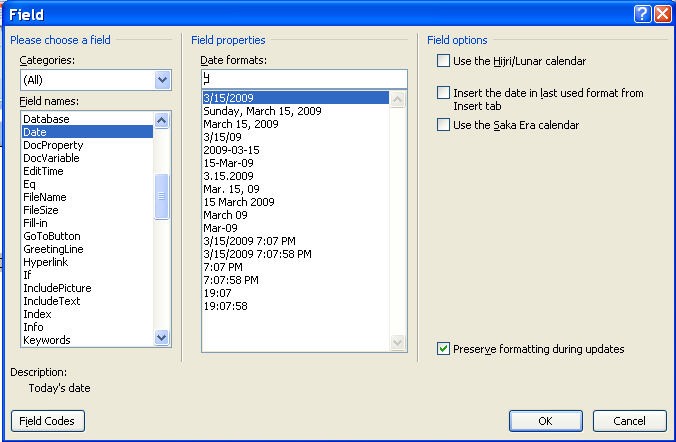

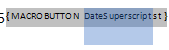
Right after the Date box we just inserted, insert a MacroField by selecting MacroField from the Field names list. In the Display text box put something like "st" (because this box will say "st", "nd", or "rd"). In the Macro name box just leave the default there (AcceptAllChangesInDoc) because we will add our own Macro next. Your document looks something like this:

Click on the "st" and type Shift + F9. This will expand the MacroField to display its code. Replace AcceptAllChangesInDoc with DateSuperScript - the name of the macro we will make next.


I want the month and the year at the end so I insert a second Date field using the code MMMM, yyyy.


The finished product looks like this:

Now type Alt + F11 to open up the Visual Basic editor. Then select the Project template for your document in the project window (it will have the name of your Word document). Expand the project. Expand the Microsoft Word Objects tab and select the ThisDocument icon and then paste this code in the document:

Sub AutoSuperScript()
Dim oStory As Range
Dim oField As Field
For Each oStory In ActiveDocument.StoryRanges
For Each oField In oStory.Fields

If InStr(1, oField.Code.Text, " MACROBUTTON DateSuperscript") Then
oField.Code.Text = " MACROBUTTON DateSuperscript " + GetDateSuperscript
End If
oField.Update
Next oField
Next oStory
End Sub

Private Sub Document_New()
AutoSuperScript
End Sub

Private Function GetDateSuperscript()
'1-> st
'2->nd
'3->rd
'0, >3 ->th
strDt = Str(Day(Now))
strEnd = Right(strDt, 1)
If strEnd = 1 Then
GetDateSuperscript = "st"
ElseIf strEnd = 2 Then
GetDateSuperscript = "nd"
ElseIf strEnd = 3 Then
GetDateSuperscript = "rd"
Else
GetDateSuperscript = "th"
End If
End Function


Now every time you create a new document from your template the date will be updated. If you really want to get wild, add the AutoSuperScript function to the UpdateAll function I talked about in this post. That way, the superscript will get updated every save.

Sunday, April 5, 2009

MOTD: Print Current Page Shortcut

I use the print current page setting in the Print dialog of Word enough that I recorded a macro for it. I simply recorded a macro without editing any code so you can record it yourself using this post and this post, or you can put the following code in the Normal template and assign a shortcut to it (use this post):

Sub PrintCurrent()
'
' PrintCurrent Macro
' Macro recorded 3/9/2009 by Michael Shubeck
'
Application.PrintOut FileName:="", Range:=wdPrintCurrentPage, Item:= _
wdPrintDocumentContent, Copies:=1, Pages:="", PageType:=wdPrintAllPages, _
ManualDuplexPrint:=False, Collate:=True, Background:=True, PrintToFile:= _
False, PrintZoomColumn:=0, PrintZoomRow:=0, PrintZoomPaperWidth:=0, _
PrintZoomPaperHeight:=0
End Sub

Sunday, March 22, 2009

Macro of the Day (MOTD): Keybord Shortcut For Envelope Printing

I do a lot of envelope printing in my job and I use Word's Envelope Wizard to do most of my envelope printing. I don't know why they have a whole wizard for this though. I would prefer if I could simply highlight the person's address in the letter I was drafting, type a shortcut, and have it print. So, I created a macro. Type Alt + F11 to open the Visual Basic editor. I would put this code in the Normal template. The Normal template is the basis for all Word documents. By putting code there, it will run in any document you are using.

In the Project window on the left side of the Visual Basic editor, open up the Normal tab and the Microsoft Word Objects tab under that. Double click on the ThisDocument icon. Paste the following code in.

Sub PrintEnvelope()
'
' PrintEnvelope Macro
' Macro recorded 3/10/2009 by Michael Shubeck
'
ActiveDocument.Envelope.PrintOut ExtractAddress:=False, OmitReturnAddress _
:=True, PrintBarCode:=False, PrintFIMA:=False, Height:=InchesToPoints( _
4.13), Width:=InchesToPoints(9.5), Address:=Selection.Text, AutoText _
:="ToolsCreateLabels3", ReturnAddress:= _
"The Law Offices of Gregory A. Yates", ReturnAutoText:= _
"ToolsCreateLabels2", AddressFromLeft:=wdAutoPosition, AddressFromTop:= _
wdAutoPosition, ReturnAddressFromLeft:=wdAutoPosition, _
ReturnAddressFromTop:=wdAutoPosition, DefaultOrientation:=wdLeftLandscape _
, DefaultFaceUp:=False, PrintEPostage:=False
End Sub

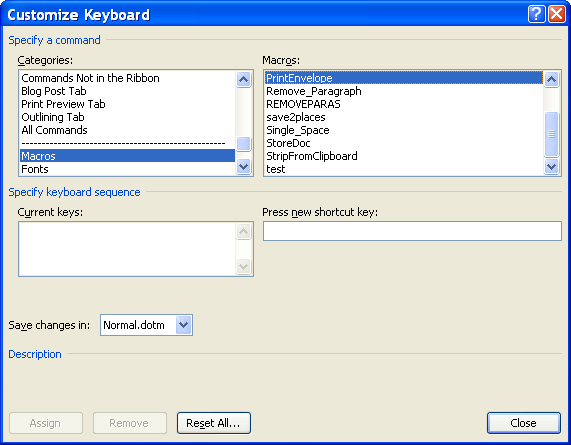
Now lets hook the macro up to a keyboard shortcut. In Word 2007, click on the Office Button Then click on Word Options at the bottom of the menu that pops out. Then hit the Customize tab. Finally, at the bottom of the Customize window, hit the customize keyboard shortcuts button. In the Categories box, scroll down to Macros. Then, in the Macros box, select our PrintEnvelope macro. Now, click in the Press New Shortcut Key box. Type the key combination that you want to assign to the macro. If the key combination is already used it, the window will show text that says "Currently assigned to." Usually I just replace what was assigned by the Microsoft people because they have shortcuts for features I will never use. Finally, hit the Assign button (don't forget this - I do all the time).
Now you can highlight a person's address in your document, use your shortcut, and the envelope will print.

As a final note, watch out where the envelpe prints if you have multiple printers installed. The envelope will print to the printer listed in the print menu.

Wednesday, March 26, 2008

Using Greasemonkey to "fix" a webpage

Do you use a webpage that doesn't quite get the job done? Is there just something missing? Greasmonkey to the rescue. Greasemonkey is an addon for Firefox that allows you to "fix/hack" web pages. You add different scripts to Greasemonkey that hack the page you are visiting. When the page loads, the Greasemonkey script that goes with that page is run. The script doesn't actually hack the web page on the server, it alters the way you see the web page on your computer. You can find Greasemonkey scripts here. These scripts do such varied things as adding a currency converter to eBay, a auto save for web text boxes, a bunch of stuff for Facebook (get rid of adds/spam all your friends/change page colors/make peoples profile pictures larger), etc. Heres a good run down of some good scripts.Lifehacker lists some good ones too. The July 2007 ABA Journal lists Greasemonkey as number 43 of 101 tips, tricks and tools to make you a more productive, less stressed-out lawyer.

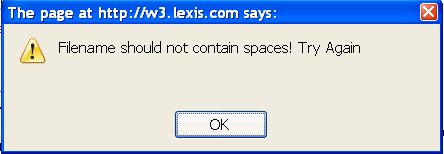
For example,I do a lot of case research using Lexis. Aside from noting passages using Google Notebook, I like to download cases onto my hard drive so I can read the later and make notes on them using Acrobat Professional or Foxit. One annoyance I ran into was naming cases and articles I downloaded. Usually I am downloading tons of cases that I've found during a search. Its faster if I simply copy the title into the filename box. However, my friendly Nexis page tersely tells me "Filename should not contain spaces! Try again."

Try again? What is this, a guess the right filename contest? Now, I know what you are thinking, why can't I just delete the spaces? Well, you try doing that with 50 cases. So my solution was to create a Greasemonkey script that adds a "Strip Spaces" button to Lexis that replaces spaces with underscores.

For those interested, heres the code (this is Javascript, but see this post for a little better understanding of code generally):
// This script will add a Strip Spaces button to the Lexis download page.
//
// ==UserScript==
// @name ReplaceWUnderscore
// @namespace http://techoflaw.blogspot.com
// @description Adds a Strip Spaces button to Lexis
// @include http://w3.lexis.com/research2/delivery/*
// ==/UserScript==
//


var eltAfter, newElement;
eltAfter = document.getElementById('delDwnldName');
if (!eltAfter)
eltAfter=document.getElementsByName('fileName')[0];//for some reason the getdocument is dift that the search
if(eltAfter)
{
//add the script
scriptAfter=document.getElementsByTagName('head')[0];//document.getElementsByName("script")[0];
newScript = document.createElement('script');
newScript.setAttribute("type","text/javascript");
newScript.innerHTML="function stripspaces (){obj=document.getElementById('delDwnldName');if(!obj) obj=document.getElementsByName('fileName')[0];str= obj.value;str=str.replace(/ /g,'_');obj.value=str;};"
scriptAfter.parentNode.insertBefore(newScript, scriptAfter.nextSibling);

//add the button
newElement = document.createElement('input');
newElement.setAttribute("value","Strip Spaces");
newElement.setAttribute("class","browseButton");
newElement.setAttribute("onclick","stripspaces();");

newElement.setAttribute("type","button");
eltAfter.parentNode.insertBefore(newElement, eltAfter.nextSibling);
}

Thursday, February 28, 2008

Video Demonstration of Macro Recording

Just to clarify my last post, I've recorded a video of the macro recording process.


Because of the quality constraints of internet video, it may be a little better to click through to YouTube and watch full screen.
__________
Share This Post!

Wednesday, February 27, 2008

Using Microsoft Office Macros

This post is an introduction to using macros in Office applications. Check Bill's recent post to enable macros. Bill has hinted a little bit at the power of Office automation and I wanted to jump in quick and get some initial explanations out of the way.
I'm going to do something we can build on later, a macro that finds and replaces paragraphs with a space so that all the text ends up in one line (this will be handy for cleaning up messy pastes from Acrobat - see the description of the problem here).

First lets start recording a macro. In Word 2007, go to Developer -> Record Macro . After hitting the Record Macro button, Word will ask you to name the macro, just pick something descriptive like "replace paragraphs." After hitting OK Word will be in record mode and your cursor will have a record symbol .


Next we do the actions in Word that we want to repeat with our macro. In this case, we are going to find and replace paragraphs with spaces. Go to the Find and Replace dialog (Home->Replace in Word 2007 or Ctrl+H). We need the advance options to replace paragraphs. Hit the More button in the lower left of the dialog box. Once the advanced options are visible, hit the Special button and select paragraph mark. The Find what box will show a "^p" to symbolize that it will find paragraphs. Now, put a " " (space) in the Replace with box. Now hit the Replace All button. Whether or not anything was replaced doesn't matter, we are saving this for the future. Now hit the Developer ->Stop Recording button. You've just created your first macro.

You can go to the Visual Basic editor to see the code generated (Developer -> Visual Basic or Alt+F11). The code looks like this (don't get intimidated, we will explain later).


Sub Macro1()
'
' Macro1 Macro
'
'
Selection.Find.ClearFormatting
Selection.Find.Replacement.ClearFormatting
With Selection.Find
.Text = "^p"
.Replacement.Text = " "
.Forward = True
.Wrap = wdFindContinue
.Format = False
.MatchCase = False
.MatchWholeWord = False
.MatchWildcards = False
.MatchSoundsLike = False
.MatchAllWordForms = False
End With
Selection.Find.Execute Replace:=wdReplaceAll
End Sub
Now, lets test the new macro. Type some text into Word in different paragraphs (type text, hit enter, type some more, repeat). Then run the macro. Go to Developer ->Macros (or hit Alt+F8). The macro window will pop up, pick yours from the list and hit run.


Viola! This:

Turns into this:


In a future post, Bill will show how to assign a keyboard shortcut to our new macro.
__________
Share This Post!

Tuesday, February 19, 2008

Making Templates of Commonly Used Documents

The practice of law involves a good deal of repetition in documents. One attorney I've worked for gave me a memorable quote as I was scanning and OCRing several of our client's competitor's franchise agreements: "It won't help you in law school, but plagiarism is an asset to the practice of law." Another way to take advantage of the repetition in the legal field is with document automation technologies. Bill is slated to get to the real good stuff, but in the meantime I can talk about document templates.

Step 1: Creating the template content

The idea behind a document template is that you can create a foundation document that has all the necessary information in it except that information that is specific to a use. A template leaves use specific information as "blanks" to fill in each time you create a new document based on the template. You may have been exposed to templates that ship with Word. For example, the basic letter or memo templates frequently come in handy. One time saver I've created is a pleading template. To create this template I first open a Word document and set up the format I would like me pleading to have.

Step 2: Creating "blanks"

Next, I can create the "blanks" that I fill in every time I create a new pleading. As you can see at right, blanks will be county, district, plaintiff name, defendant name, case number, pleading title, date, attorney address, and attorney names. Creating the "blanks" is the hard part, which is kind of silly because the "blanks" are only moderately helpful. All the "blanks" really do is make it easy to replace place holder text in the document, by automatically highlighting the text to replace. Skip this step if you don't care.

In Office 2007, you go to the Insert tab on the Ribbon bar.

Next, go to the Quick Parts button.

Then select the Field menu item. In the Field dialog, select MacroButton in the Field name list and DoFieldClick in the Macro name list.

Type the text that will act as a place holder for your "blank" in the Display text box. Hit the OK button and your "blank" will be inserted.

Step 3: Saving the template

To save as a template, go to save and select "Word Template" in the Save As Type box. In earlier versions of Word, selecting Template as the Save Type will automatically change the folder to the templates directory on your computer. In Office 2007, there is a Trusted Templates on the left side of the Save As dialog box (see picture at left). You will want to save templates to the templates folder to make them easy to find and use later.

Step 4: Use the template

To use the template go to New in Word and select your new template from the list of templates (in Office 2007 this will be under a tab called My Templates).


__________
Share This Post!