


Hello there, it's been a while. Just wanted to stop by amid my dilligent work protecting the rights of innocent South Dakotan's to pollute and drop by a little tip I thought needed sharing.
When you're working in Word and you need a section in all capitals select it and press Ctrl+Shift+A. The same combination returns it to the normal case setting. I use this in my captions and for section headings in briefs quites a bit. Hope it helps.
See you in another 6 months! just kidding (hopefully)
Thursday, February 19, 2009
Word shortcut of the day: Ctrl+Shift+A


Monday, February 16, 2009
Sync Mobile Contacts to Gmail
Google has finally implemented something that users have been requesting for years, synchronization of mobile phone contacts and calendar items with gmail. Google previously released Google Calendar Sync, which synchronizes between Outlook and Google calendar. This allowed you to bounce Google Calendar items off Outlook and onto a mobile phone. Now you can synchronize directly between your phone and Google, AND contacts will be synchronized.
Now our appointments and contacts can be backed up, readily accessible from anywhere, and easily edited from a PC.
You can find instructions here. I had trouble setting up my Windows Mobile phone the solution is here.

Now our appointments and contacts can be backed up, readily accessible from anywhere, and easily edited from a PC.
You can find instructions here. I had trouble setting up my Windows Mobile phone the solution is here.
Saturday, February 14, 2009
Autogenerate Table of Contents in Word
So its that time again and the poor first years are writing briefs in Appellate Advocacy. One of the most frustrating things was creating a table of contents and table of authorities and have all the pages right - especially forgetting to update after an edit.
Auto Generate Table of Authorities
West provides a utility called WestCiteLink that takes the pain out of the table of authorities. There is a Firefox plugin called CiteGenie that is supposed to take the pain out of citation. Bill recommended CiteGenie but I haven't had the time to test it.
Auto Generate Table of Contents
Word has a function that will generate your table of contents automatically. To use it we first have to become familiar with styles. In Word 07, you can find the styles buttons under the Home heading (because the first thing I think of when I think "Home" is styles and fonts etc. - good job M$). In earlier versions of Word, styles can be found under Format->Styles and Formatting (now that makes sense). We are going to be using the heading styles that look like this:

Type some text into a blank word document, highlight the text, and then click on the style you want to apply. As a result, your text looks like the style you selected:
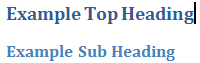
I have created two headings, one with the Heading 1 style, and the other with the Heading 2 style. Word will put all my headings that have been set to a certain style into a table of contents, complete with page numbers.
First click at the place in the document where you want your table of contents. Go to the References tab in Word 07 (go to Insert->Reference->Index and Tables in earlier versions of Word). Then click on Table of Contents:

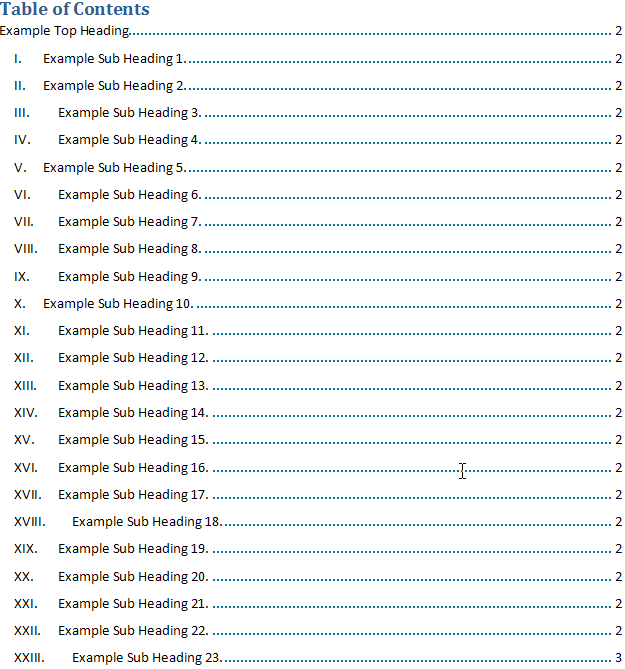
Then select one of the Automatic tables. Your table of contents is automatically generated.
Customizing Your Styles
Its probably not a good idea to have your brief headings the funky colors, sizes, and fonts that Word defaults to so we will want to customize the heading style.
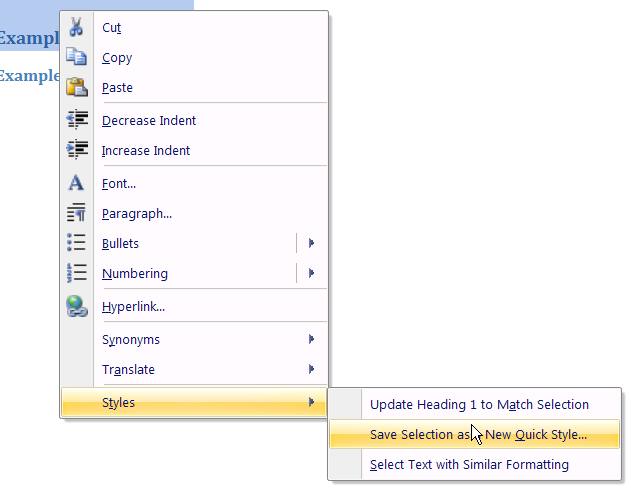
In Word 07, highlight your heading, right click on it, and select Styles->Save Selection as New Quick Style (in earlier versions, right click in the styles menu and select modify):
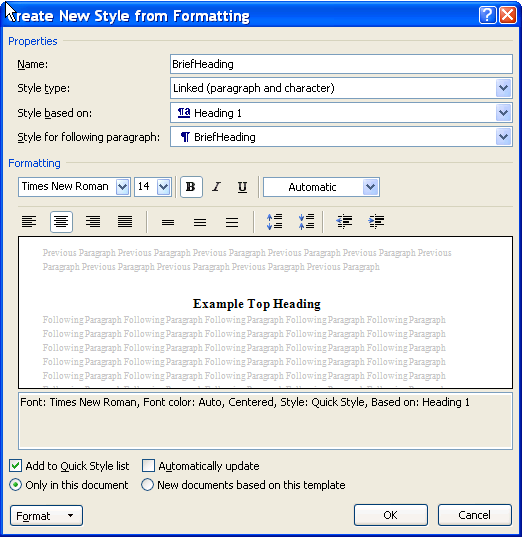
Under name, type a name for your style. Then click Modify. The modify window will pop up and you can set the font, size, and color settings the way you want them.
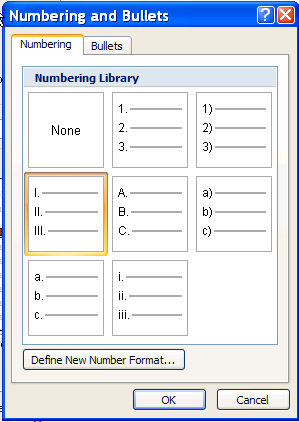
For numbered headings, click the Format button and select Numbering. In the Numbering window, pick the numbering type you want.
When all is finished, you can simply add more headings and then right click on your table of contents and hit update table.
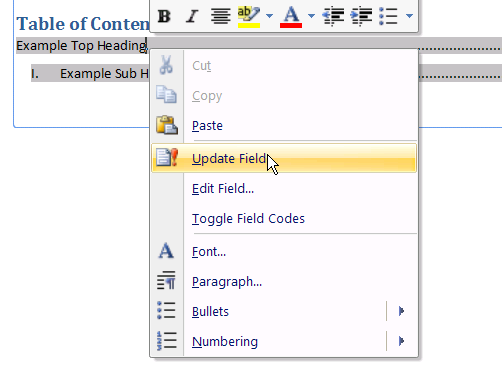
Then select Entire Table (don't just update page numbers). Your table will automatically add the new headings and the right page numbers.
Auto Generate Table of Authorities
West provides a utility called WestCiteLink that takes the pain out of the table of authorities. There is a Firefox plugin called CiteGenie that is supposed to take the pain out of citation. Bill recommended CiteGenie but I haven't had the time to test it.
Auto Generate Table of Contents
Word has a function that will generate your table of contents automatically. To use it we first have to become familiar with styles. In Word 07, you can find the styles buttons under the Home heading (because the first thing I think of when I think "Home" is styles and fonts etc. - good job M$). In earlier versions of Word, styles can be found under Format->Styles and Formatting (now that makes sense). We are going to be using the heading styles that look like this:
Type some text into a blank word document, highlight the text, and then click on the style you want to apply. As a result, your text looks like the style you selected:
I have created two headings, one with the Heading 1 style, and the other with the Heading 2 style. Word will put all my headings that have been set to a certain style into a table of contents, complete with page numbers.
First click at the place in the document where you want your table of contents. Go to the References tab in Word 07 (go to Insert->Reference->Index and Tables in earlier versions of Word). Then click on Table of Contents:
Then select one of the Automatic tables. Your table of contents is automatically generated.
Customizing Your Styles
Its probably not a good idea to have your brief headings the funky colors, sizes, and fonts that Word defaults to so we will want to customize the heading style.
In Word 07, highlight your heading, right click on it, and select Styles->Save Selection as New Quick Style (in earlier versions, right click in the styles menu and select modify):
Under name, type a name for your style. Then click Modify. The modify window will pop up and you can set the font, size, and color settings the way you want them.
For numbered headings, click the Format button and select Numbering. In the Numbering window, pick the numbering type you want.
When all is finished, you can simply add more headings and then right click on your table of contents and hit update table.
Then select Entire Table (don't just update page numbers). Your table will automatically add the new headings and the right page numbers.
Friday, October 31, 2008
Make XP remember your open folders from the previous session
If you're like me you virtually always have the same folders open. Previous versions of Windows would restore any folders you left open at the end of your previous session.... phew, that's a mouthful. In other words, If you keep the same folders open regularly, and you want them open when you restart, then follow these steps in any folder.
1. Click Tools
2. Click Folder Options
3. Click the View tab
4. Scroll down and check the checkbox beside "Restore previous folder windows at logon"
5. Click OK, and you're good.
Wednesday, October 29, 2008
Call for Contributors
Are you a tech savvy lawyer or law student? We at TOL are looking to add an additional contributor. If you're interested drop us a line at techoflaw@gmail.com.
Monday, October 27, 2008
Weekly Links
"Weekly Links" is a feature each Monday on Tech of Law reviewing several articles that may be of interest to Tech-aware attorneys. Most were not the subject of a post during the week so it's worth the time to visit each link.
- Co-op Helps Small Groups Stay Updated on Projects
New webapp Co-op makes keeping track of who's working on what within a small, distributed group easy - GTD Free Puts Getting Things Done on the Desktop
"GTD Free, a Java-based desktop app, is one of the most straight-forward implementations of the Getting Things Done organizational system you'll see" - Growth Strategies for Success in Large Law Firms
Real Time notes from the ALM/Incisive Law Firm Leaders Conference - A little ole multi-million dollar Excel mistake
Your worst nightmare. - 10 things your IT guy wants you to know
- Get the (Instant) Message, Dude!
Your client may want you to embrace new communication methods.
Monday, October 20, 2008
Weekly Links
"Weekly Links" is a feature each Monday on Tech of Law reviewing several articles that may be of interest to Tech-aware attorneys. Most were not the subject of a post during the week so it's worth the time to visit each link.
- Attribute Changer
"a free right-click utility, gives you total control over everything reported by a file to your system. Right-click one or many files and choose "Change Attributes," and you can enable or disable read-only status, hiding, indexing, and even NTFS compression. You can change the file's date of creation, modification and last access, and tweak a photo's time of taking."
- Brit Judges give up wigs
"judges across civil courts break with 300 years of tradition and ditch their horsehair wigs for modern gowns."
- The Cost of Not Going Digital
If you have not yet made the move to keeping all of your documents digitally, I recommend that you check out this post.
Subscribe to:
Posts (Atom)