


If you're like me you virtually always have the same folders open. Previous versions of Windows would restore any folders you left open at the end of your previous session.... phew, that's a mouthful. In other words, If you keep the same folders open regularly, and you want them open when you restart, then follow these steps in any folder.
1. Click Tools
2. Click Folder Options
3. Click the View tab
4. Scroll down and check the checkbox beside "Restore previous folder windows at logon"
5. Click OK, and you're good.
Friday, October 31, 2008
Make XP remember your open folders from the previous session


Wednesday, October 29, 2008
Call for Contributors
Are you a tech savvy lawyer or law student? We at TOL are looking to add an additional contributor. If you're interested drop us a line at techoflaw@gmail.com.
Monday, October 27, 2008
Weekly Links
"Weekly Links" is a feature each Monday on Tech of Law reviewing several articles that may be of interest to Tech-aware attorneys. Most were not the subject of a post during the week so it's worth the time to visit each link.
- Co-op Helps Small Groups Stay Updated on Projects
New webapp Co-op makes keeping track of who's working on what within a small, distributed group easy - GTD Free Puts Getting Things Done on the Desktop
"GTD Free, a Java-based desktop app, is one of the most straight-forward implementations of the Getting Things Done organizational system you'll see" - Growth Strategies for Success in Large Law Firms
Real Time notes from the ALM/Incisive Law Firm Leaders Conference - A little ole multi-million dollar Excel mistake
Your worst nightmare. - 10 things your IT guy wants you to know
- Get the (Instant) Message, Dude!
Your client may want you to embrace new communication methods.
Monday, October 20, 2008
Weekly Links
"Weekly Links" is a feature each Monday on Tech of Law reviewing several articles that may be of interest to Tech-aware attorneys. Most were not the subject of a post during the week so it's worth the time to visit each link.
- Attribute Changer
"a free right-click utility, gives you total control over everything reported by a file to your system. Right-click one or many files and choose "Change Attributes," and you can enable or disable read-only status, hiding, indexing, and even NTFS compression. You can change the file's date of creation, modification and last access, and tweak a photo's time of taking."
- Brit Judges give up wigs
"judges across civil courts break with 300 years of tradition and ditch their horsehair wigs for modern gowns."
- The Cost of Not Going Digital
If you have not yet made the move to keeping all of your documents digitally, I recommend that you check out this post.
Wednesday, October 15, 2008
Installing and Creating Open Search Plugins
Ever since Firefox added its search plug-in feature, I've been trying to get plug-ins for the search sites I use the most. Search plug-ins are one more way to make using a computer a little more efficient. The Search bar is usually in the upper right hand of your browser. To search a site you simply click on the Search bar and select the plug-in you want to use from your list.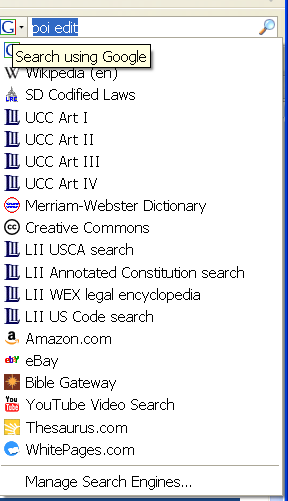
I believe all the browsers out today have this feature. Further, these browsers can all share the same search plug-ins because they use a standard called OpenSearch. There are plug-ins for all the major sites. Even if your favorite site doesn't have a plug-in, you can make your own.
Finding and installing plugins
Lifehacker did an article about installing plug-ins so I wont go into specifics. Usually, once you find a plug-in you want to add, there is a link you click to add the plug-in. Also, some sites will "broadcast" that they have a plug-in to add. These sites will insert an "add" menu item at the bottom of the plug-in list.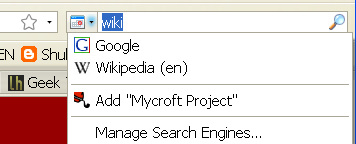
Several websites allow you to search for plug-ins for your favorite search site. The ones I've used are Mycroft at Mozzila and SearchPlugins.net. Even these plug-in sites have search plug-ins.
The Lifehacker article listed a few plug-ins that I find invaluable. Searches for:
GCal (Firefox only)
I have been experimenting with using google calendar for my legal calendaring, this plug-in allows me to search by client name without having to the Google calendar page.Gmail
Google Maps
Wikipedia
About wikipedia, have you ever noticed that their search engine is sub par? Google does a much better job of searching wiki than wiki. Here's a search plug-in that only searches Wikipedia pages using Google.

Cornell provides plug-ins to search their site. Finally, I've been making my own search plug-ins for sites that don't provide one. So far, I've only done plug-ins for the South Dakota legislature site - most significantly, the codified laws. I use this plug-in every day and you find it here.
Making Search More Efficient
Firefox 3 has the ability to associate a keyword with a search plug-in. For example, I use "wiki" as the keyword for wikipedia. To use my keyword, I type "wiki" and the term I want to search for in the address bar.

To create a keyword, click on the search plug-in drop down. Then, select Manage Search Engines. In the Manage Search Engine List dialog, you can change the order that your engines are arranged in your list. More importantly, you can add a your keyword to a search plug-in by hitting the Edit Keyword button.
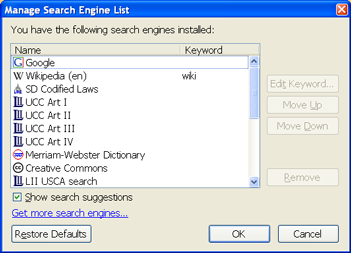
To make searching even more efficient, I use the keyboard shortcut Ctrl+l to automatically put the cursor in the address bar.
Creating Your Own Search Plug-In
Before continuing with my tradition of giving too much information, I must give the disclaimer. If you don't want to know how to create your own plug-in, don't read this.
The Mozilla Mycroft project makes it easy to create your own plug-ins with an Open Search generation page.
The best way to explain this is by an example. Lets create a plug-in to search the South Dakota Constitution.
The first step is to get an icon for the plug-in. I want to use the page's icon. Most websites have their icon in a file called favicon.ico. I can get to this on legis.state.sd.us with the address http://legis.state.sd.us/favicon.ico. Then I can save the file to my hard drive. Next, on the Mycroft page, I can browse to the file on the Choose Icon box.
Next fill in something for the Reference. I'm using sd_const. Name, e-mail, plug-in name, Plug-in Description, category, country, language, and Comment are all up to you. I leave Input Encoding at UTF-8 and I'm not going to research it to give a good explanation.
Next, I'm going to fill in the Search URL. This is the hardest part. I can either look at the code of the page I want to make a plug-in for or, in the easiest case, look at the URL of the page doing a search. The South Dakota Constitution search is easy because it passes its search string in the URL. To get to § 6, the Bill of Rights, the page uses the URL http://legis.state.sd.us/statutes/DisplayStatute.aspx?Type=Statute&Statute=0N-6. The important part is seeing where the "6" is. Copy everything up to the "6" paste it into the Search URL text box and put "{searchTerms}" where the 6 was. Thats it. For searches that don't pass on the URL, I'll figure it out and fill you in later.
Now make sure the Get radio button is checked. For the other fields; suggestions URL is for sites that support this and those probably have made their own plug-in and I don't know what the Search Form URL is for yet but I had to fill it in. I used http://legis.state.sd.us/statutes/Constitution.aspx.
Finally, hit the Generate Plugin button and then Install Plugin button. Test the plug-in out and if it works, hit the Submit Plugin button. Thats it.
Thursday, October 9, 2008
Blog Worth Reading: Windows Keyboard Shortcut of the Day
Windows Keyboard Shortcut of the Day (WKSotD) may not roll off the tongue very easily, but it will definitely make your life easier.
There is perhaps nothing simpler that you can do to increase your efficiency and productivity on the computer than to learn, use and, in some cases, customize the keyboard shortcuts of whatever particular piece of software you are using. WKSotD does exactly what it sounds like it should do. Every day (almost) a different keyboard shortcut is covered whether it be a universal one (Ctrl+S) or a software specific one (Firefox/Google Chrome).
Go to WKSotD and subscribe to his RSS feed.
Tuesday, October 7, 2008
Making GPS easier with Google
I have a Tom Tom GPS receiver and have found it to be very helpful in navigating in unfamiliar places. I haven't used it in a legal context as of yet, but I can guarantee there will be a time in the future. Specifically, I would like to add large numbers of addresses to my GPS as favorites. Tom Tom can store favorites but it is a hassle to enter them in. Google on the other hand provides two products that are very capable of compiling large lists of addresses, Google Maps and Google Earth. Google Maps is web based and available here (you will need a Google account to save lists of addresses). Google Earth gets installed on your computer and is available here. However, both of the products place their data in a format that my GPS device doesn't understand. Google uses a file called KML or KMZ, while Tom Tom has their own ov2 format. The solution is POIEdit which allows you to import and export Google, Tom Tom, and many other formats. The program also lets you edit the "Points Of Interest" in a tabular format.
Lets take the example of using Google Earth to look up a collection of addresses. First, create a folder for saving your addresses in by right clicking on the My Places root folder in the Places box and select Add->Folder.
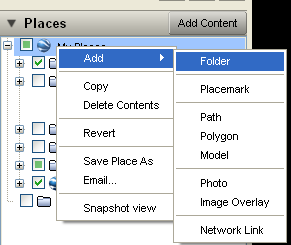
Next, do a search in Google Earth's search box. Then, click & drag the address you want to save into your new folder.
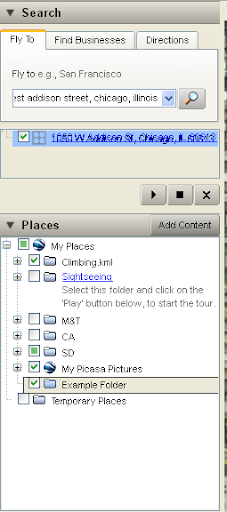
Finally, right click on your folder and select Save Place As. Save the file as a KML file because POIEdit doesn't understand the KMZ variety. Now in POIEdit, go to File->Open and find the file you saved from Google Earth. Once the file is open, you can tweak the names of your points of interest.
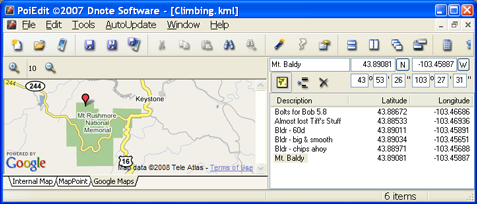
Now we can save in a format our GPS device can use. Select File->Save as and select the format that your GPS device uses. Mine uses the Tom Tom ov2 format. Finally, save it on your device. My Tom Tom is treated as a memory card, so I just save the file directly to its memory.
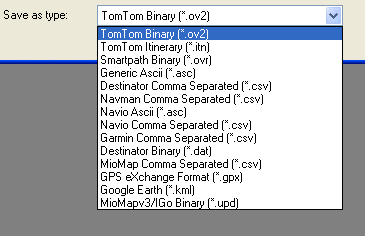
POIEdit also has a batch convert tool in the tools menu. Use this tool to convert multiple files. My Tom Tom uses the name of the file as the category of the POIs, which can be handy. For example, I have a file of climbing spots. When I do a search on the Tom Tom, I can look for POIs in a certain area with the category of Climbing and select the spot from the list. One final idea, some services allow you to upload a excel file of addresses and then download a table of gps coordinates (for example, CommunityWalk). If you have a large number of addresses, these services can be handy for getting those into your GPS quickly.
Lets take the example of using Google Earth to look up a collection of addresses. First, create a folder for saving your addresses in by right clicking on the My Places root folder in the Places box and select Add->Folder.
Next, do a search in Google Earth's search box. Then, click & drag the address you want to save into your new folder.
Finally, right click on your folder and select Save Place As. Save the file as a KML file because POIEdit doesn't understand the KMZ variety. Now in POIEdit, go to File->Open and find the file you saved from Google Earth. Once the file is open, you can tweak the names of your points of interest.
Now we can save in a format our GPS device can use. Select File->Save as and select the format that your GPS device uses. Mine uses the Tom Tom ov2 format. Finally, save it on your device. My Tom Tom is treated as a memory card, so I just save the file directly to its memory.
POIEdit also has a batch convert tool in the tools menu. Use this tool to convert multiple files. My Tom Tom uses the name of the file as the category of the POIs, which can be handy. For example, I have a file of climbing spots. When I do a search on the Tom Tom, I can look for POIs in a certain area with the category of Climbing and select the spot from the list. One final idea, some services allow you to upload a excel file of addresses and then download a table of gps coordinates (for example, CommunityWalk). If you have a large number of addresses, these services can be handy for getting those into your GPS quickly.
Subscribe to:
Posts (Atom)